Activating Etch Intelligence
Etch Intelligence requires an OpenAI API key to use. This page walks you through getting a key and turning the feature on. For an overview of what Etch Intelligence is, see the Introduction.
Getting an OpenAI API Key
- Go to platform.openai.com and create an account (or sign in)
- Navigate to API Keys in the left sidebar (or go directly to platform.openai.com/api-keys)
- Click Create new secret key
- Give it a name (e.g., "Etch") and click Create secret key
- Copy the key — you won't be able to see it again after closing the dialog
Keep your API key private. Never share it publicly or commit it to version control. OpenAI charges based on usage, so a leaked key can result in unexpected charges.
You'll also need to add a payment method to your OpenAI account. API usage is billed separately from ChatGPT subscriptions — even if you pay for ChatGPT Plus, you still need API credits. You can set usage limits in your OpenAI account settings to control spending.
Enabling Etch Intelligence
- Open the Etch builder
- Go to Settings (gear icon)
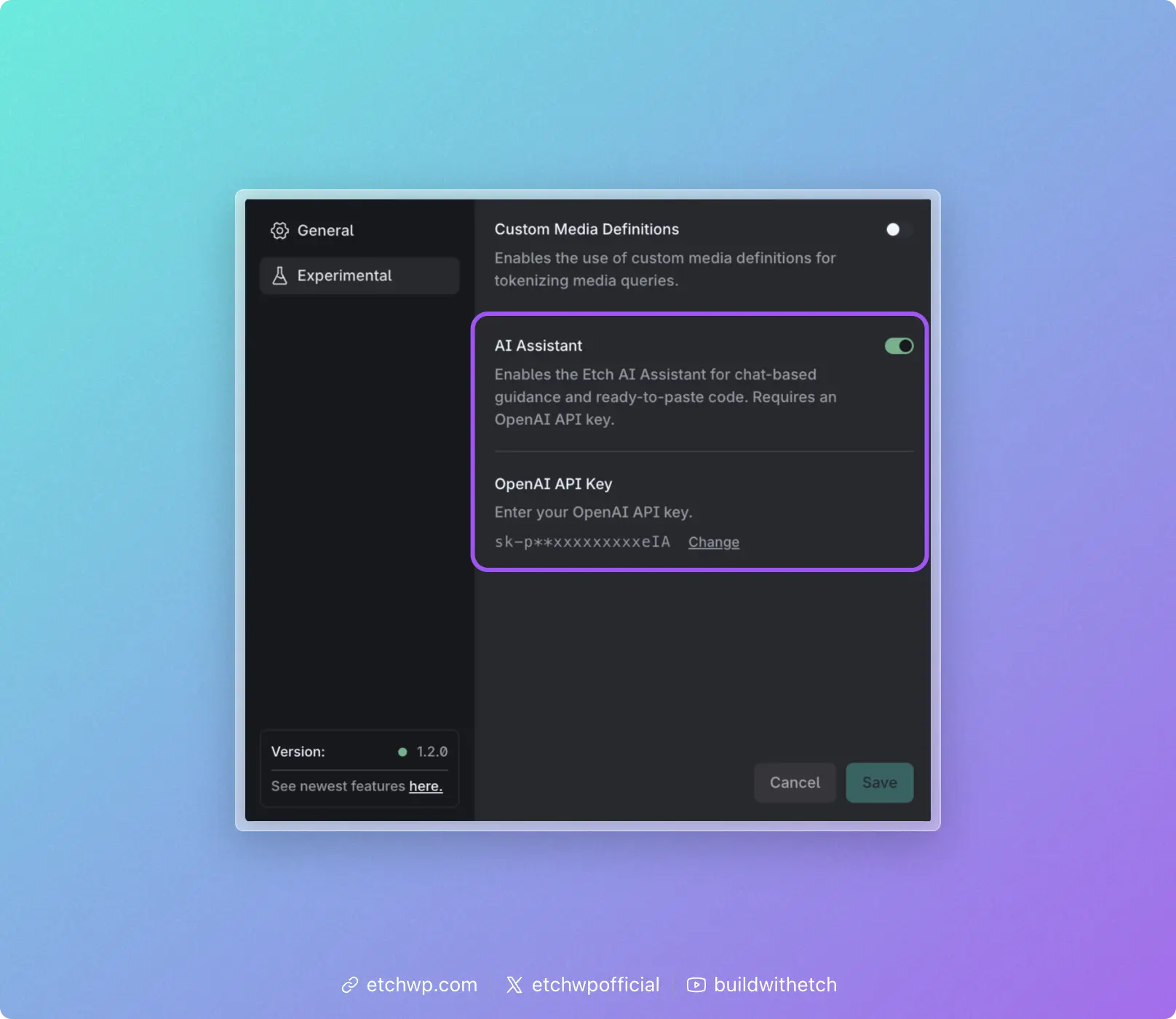
- Switch to the Experimental tab
- Toggle AI Assistant on
- An OpenAI API Key input will appear below — paste your key there
- Click Save
Etch Intelligence is now available in the builder. Once activated, the panel will appear automatically. You can show or hide it at any time like any other panel in Etch — it doesn't need to be visible to stay enabled.
Future LLM Support
OpenAI is the only supported provider currently, but we plan to expand LLM options in the future to include additional providers and models. We also plan to provide a more capable, trained model natively via subscription.